VistaCreate: AI Graphic Design
Crello Ltd.Art & Design
4.31.67K Reviews
- Version
- 2.49.0
- Installs
- 5.00M
- Age Rating
- Teen
Screenshots
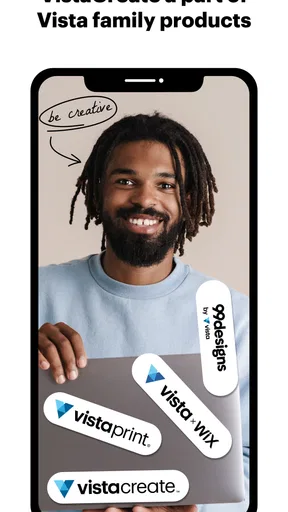
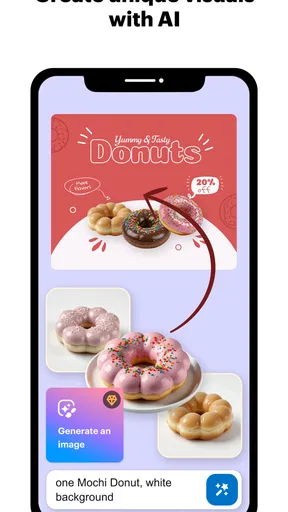
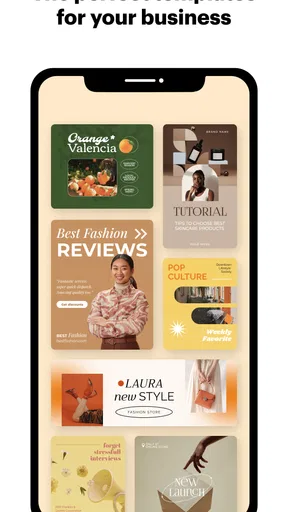
Our Review of VistaCreate: AI Graphic Design
 Analysis by Appyee
I’ve found that the hardest part of making a quick graphic is often not choosing a color or finding a picture; it’s getting from a blank screen to a layout that looks deliberate. VistaCreate: Graphic Design is aimed at that everyday problem. It’s an art and design app from Crello Ltd. for putting together visual content on a phone, with templates and editing tools that make more sense for a quick post or flyer than for a complicated, from-scratch design project.
That convenience comes with a little friction of its own. A template can get you moving, but it still needs editing to feel personal, and a design that looks good on a small screen may need a closer check before you share or print it. I’d approach the app as a practical shortcut: useful when I need a polished starting point, less suitable when I want exact control over every detail.
Where a quick design can get stuck
The first decision is often which template to use. A large selection is helpful, but browsing too long can become its own task. I get better results when I decide the purpose first—an event announcement, a social post, or a simple invitation—and then look for a layout that already has the right shape and amount of text. That keeps me from choosing a design just because its preview looks attractive.
The next snag is fitting my own wording into a layout made for different text. If a heading wraps awkwardly or the design starts to feel crowded, I’d shorten the copy before shrinking everything to make it fit. A graphic usually reads better when it has one clear message and enough space around it. This small edit often matters more than adding another decorative element.
Setup checks before you start
VistaCreate is free to download, and it is rated Teen. The app has an average rating of 4.4 from around 47,000 ratings, with over 5 million installs. It was released on October 24, 2019, and version 2.46.13 lists Android 7.0 as the minimum operating system. Those details make it easy to judge basic compatibility before installing; the app also has in-app purchases, with items ranging from $3.49 to $120.00, so I’d check the price shown for anything I choose to buy rather than assume every asset or option is included at no cost.
Before starting a design I care about, I make sure the app has finished loading and that I have a reliable connection for browsing its available material. If something feels slow, I avoid repeatedly tapping buttons or rebuilding the same project; I give the screen time to respond, then try again. A rushed setup can make an ordinary delay feel like a lost design, especially when I have not yet saved or exported anything.
Build a repeatable workflow
For recurring content, I’d keep the design decisions simple and consistent: use a similar color palette, keep the main message in the same visual position, and change only what the new post needs. That makes a series feel connected without forcing every graphic to be identical. It also makes editing a template less of a hunt through its parts each time.
A useful finishing check is to preview the graphic at the size people will actually see it. On a phone, small supporting text can become hard to read even if it looked fine while editing. I check the headline first, then the call to action or key details, and only then spend time on minor visual tweaks. For a flyer, I also review names, dates, and contact details carefully before sharing or printing; a tidy design cannot fix an incorrect detail.
When a problem may be elsewhere
If sharing or saving does not work as expected, I first check whether the design itself is complete and whether the device has a stable connection. I also consider the destination: an issue in another social app or a temporary network problem may interrupt a handoff even when the graphic is fine. Trying a straightforward save to the device can help separate an export problem from a problem with the app I’m trying to share to.
Likewise, a design that looks cramped is not always a technical fault. The template may simply be a poor match for the amount of text, or the intended platform may call for a different layout. Starting with a better-fitting format is often quicker than pushing a mismatched design into shape. For print, I’d be especially cautious about relying on a phone preview alone; I would check the final file and intended dimensions before sending anything to a printer.
Getting Started with VistaCreate
First things first, let’s talk about getting started. Downloading VistaCreate is a breeze. Just head over to your app store, type in the name, and voilà! Once you’ve got it on your device, the fun begins. The interface is super intuitive, which is a fancy way of saying you won’t need a degree in design to navigate it. It greets you with a clean, well-organized dashboard that doesn’t feel overwhelming at all.
A World of Templates
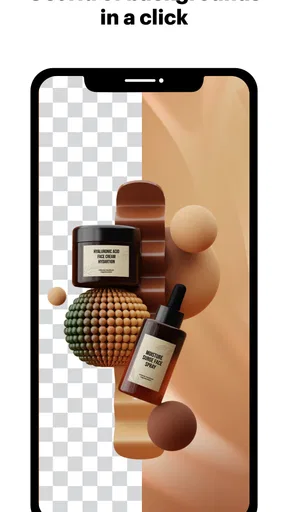
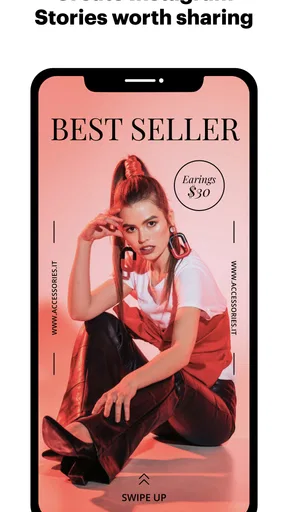
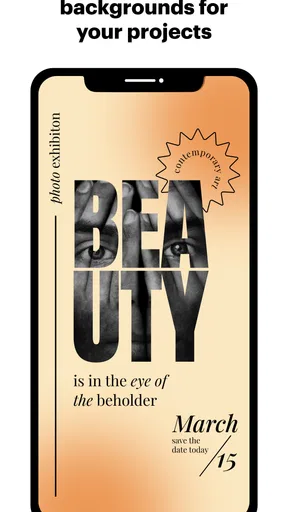
The app boasts a vast library of templates for pretty much anything you can think of—social media posts, flyers, invitations, and more. Seriously, there’s a template for every occasion. What I love about these templates is how customizable they are. You can tweak the colors, fonts, and images to make them truly yours. Plus, the drag-and-drop functionality makes it feel like you’re just playing a game rather than working on a project.
Features That Stand Out
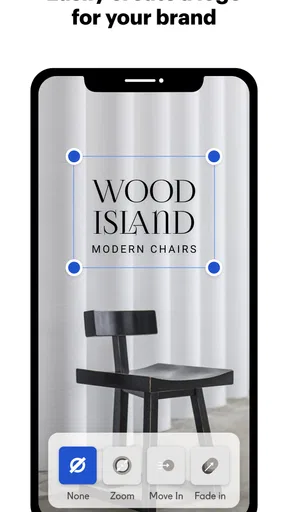
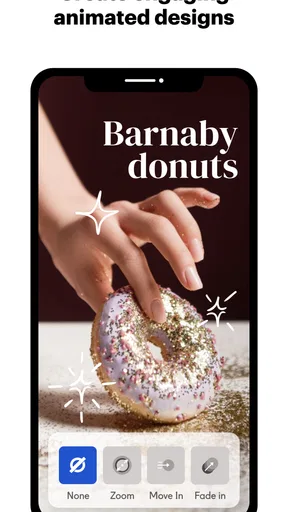
One of the standout features for me is the ability to add animations to your designs. This is a massive bonus if you’re into creating eye-catching social media content. Animations can transform a simple graphic into something dynamic and engaging. And let’s be real, who doesn’t love a bit of motion magic?
Another cool feature is the integration with stock photo libraries. You don’t have to leave the app to find the perfect image; it’s all right there at your fingertips. This feature is a time-saver and a half!
Easy to Share
Once your masterpiece is ready, sharing it is just as easy. Whether you’re sending it directly to Instagram, Facebook, or saving it to your device, the app handles it all smoothly. No fuss, no muss. Just simple, straightforward exporting that gets your work out into the world in no time.
For Everyone, Everywhere
While VistaCreate is a fantastic tool for beginners, I’d say even seasoned designers might find it handy for quick projects. It’s one of those apps that you can use on the go, perfect for those moments of inspiration when you’re away from your desk. And let’s not forget, it’s available cross-platform, so whether you’re team Android or iOS, you’re covered.
Choosing it over a blank canvas
In an everyday scenario, I might use it to prepare a weekend market announcement: choose a flyer layout, replace the sample message with the time and location, adjust the colors to suit the event, and inspect the result before sharing it with the group. That is where a template-led editor earns its keep. It reduces the number of design decisions I need to make, while still leaving room to give the announcement a recognizable look.
Compared with starting in a general-purpose drawing or image-editing app, this approach is faster when the job resembles a familiar format. A blank canvas gives more freedom but also asks me to build the hierarchy, spacing, and overall composition myself. VistaCreate is the better fit when speed and a ready-made structure matter more than precise, individual control. If I were creating a detailed illustration or refining a brand identity from scratch, I would choose a tool built around that kind of work instead.
Make the template work for you
One less obvious trade-off with templates is that they can make different users’ work look alike. I try not to keep every sample choice: changing the wording, palette, and image together gives a stronger sense of ownership than swapping only one small detail. At the same time, changing everything at once can make it harder to tell why a layout works, so I preserve the parts that serve the message and edit the parts that feel generic.
For animated content, I’d use motion with a reason rather than treating it as decoration. Movement can draw attention to a short announcement, but it can also compete with the text if too many elements demand attention. I keep the central message clear and check the finished result as a viewer would encounter it, not just while editing. A static graphic is often the better choice for information people need to read carefully or keep for reference.
The stock-photo integration is handy when a visual is needed quickly, but a readily available image is not automatically the right image. I look for a photo that supports the message and leaves enough visual breathing room for text. If the picture is too busy, a simpler choice can make the finished design feel more intentional. This is one reason I would not expect the app to make creative decisions for me: it speeds up production, but judgment still matters.
Who will get the most from it
I’d recommend it to a small business owner making occasional promotions, a community organizer preparing an event graphic, or someone who wants social content without learning a full desktop design workflow. It is also useful for a designer who needs a quick draft while away from a computer, provided the task is modest and the phone interface suits the job. The combination of templates, editable visual elements, animation, and in-app image browsing covers a practical range of lightweight work.
I’d skip it as my main tool if my work depends on exact layout control, complex image retouching, or detailed illustration. A larger-screen editor is easier for careful alignment and long sessions, while a dedicated illustration app is a more natural home for drawing. I would also avoid choosing a template simply because it is convenient if the result needs to follow strict brand rules. In that case, consistency and precise control matter more than getting to a first draft quickly.
Before sharing or paying
Is it free to try? Yes, the app is free, but in-app purchases are available, so I would review any purchase screen carefully and decide whether the specific item is worth paying for. Does it suit a first-time designer? I think so: starting from a template is less intimidating than building every part from scratch. Can it make animated content? Yes, animation is one of its useful creative options, though I would reserve it for designs where motion helps rather than distracts.
Can I use it for print as well as social graphics? It can be used for flyers and similar materials, but I would inspect the finished file and check the requirements of the printer or destination before committing. And if sharing fails, should I immediately redo the design? No. I’d first try saving it to the device and check the connection or destination app; that helps identify whether the issue lies in the handoff rather than in the artwork itself.
Final Thoughts
In a nutshell, if you’re looking for a powerful yet easy-to-use graphic design tool, VistaCreate: Graphic Design is definitely worth a download. It’s packed with features that make design accessible to everyone. Whether you’re crafting a social media post or designing a flyer, this app has got your back. Give it a try and let your creative juices flow!
Verdict
Strengths of VistaCreate: AI Graphic Design
- Intuitive user interface design.
- Wide range of templates available.
- Seamless integration with social media.
- High-quality export options.
- Frequent updates with new features.
Limitations of VistaCreate: AI Graphic Design
- Limited free version features.
- Occasional app crashes.
- Requires internet for most functions.
- Can be resource-intensive on older devices.
- Some features require in-app purchases.
Similar Picks in This Category
View All
Canva: AI Photo & Video Editor
Canva4.8

PENUP – Drawing-sharing SNS
Samsung Electronics Co., Ltd.4.5

Crafto
Kutumb App4.6

Sketchbook
Sketchbook4.1

ibis Paint X
ibis inc.4.5

Adobe Express: AI Photo, Video
Adobe4.6
Frequently Asked Questions
What features does VistaCreate offer for graphic design?
VistaCreate offers a wide range of features including customizable templates, a vast library of stock photos and illustrations, and easy-to-use design tools. Users can create social media graphics, presentations, posters, and more. The platform also supports animations and offers various text and layout options to enhance creativity.
Is VistaCreate suitable for beginners in graphic design?
Yes, VistaCreate is very beginner-friendly. Its intuitive interface and drag-and-drop functionality make it accessible for users with no prior design experience. The app provides tutorials and guides to help beginners navigate through its features and start designing quickly and efficiently.
Can I use VistaCreate for free, or is there a subscription required?
VistaCreate offers a free version with access to basic features and a limited set of templates and design elements. For additional features, such as premium templates and an expanded library, users can opt for a subscription plan which provides a more comprehensive design experience.
What file formats can I export my designs in VistaCreate?
VistaCreate allows users to export their designs in various formats, including PNG, JPG, PDF, and MP4 for animated content. This flexibility ensures that users can use their designs across different platforms and mediums, catering to diverse needs whether for print or digital use.
Is VistaCreate available on both Android and iOS devices?
Yes, VistaCreate is available for download on both Android and iOS platforms. This ensures that users can access their projects and continue designing on-the-go, no matter what device they are using, providing a seamless experience across different devices.
